---
title: Setting a COM Port for the GSI Corti and Maico EroScan (AudBase v47b or greater)
description: Starting with Build 47b, AudBase saves your GSI Corti or Maico EroScan COM port selection in preferences. Learn how to configure it so you no longer need to select it each session.
---
[Skip to content](https://support.audbase.com/knowledgebase/set-a-com-port-for-corti-eroscan#main-content)
English
Show submenu for translations
[Fill out a Support Request](https://support.audbase.com/knowledgebase/kb-tickets/new?hsLang=en)
[](https://support.audbase.com/?hsLang=en)
- [Home](https://www.audbase.com/)
- [Blog](https://blog.audbase.com/)
- Support
Show submenu for Support
- [Request Support](https://share.hsforms.com/167lFxVi8TKqHSa4CuG4-uQtl9p1)
- [Knowledge Base](https://support.audbase.com/)
- [Download AudBase Client](https://support.audbase.com/downloads)
- [Contact Us](https://www.audbase.com/contact-and-support)
- [About](https://www.audbase.com/about-us)
Open main navigation
Close main navigation
- [Home](https://www.audbase.com/)
- [Blog](https://blog.audbase.com/)
- Support
Show submenu for Support
- [Request Support](https://share.hsforms.com/167lFxVi8TKqHSa4CuG4-uQtl9p1)
- [Knowledge Base](https://support.audbase.com/)
- [Download AudBase Client](https://support.audbase.com/downloads)
- [Contact Us](https://www.audbase.com/contact-and-support)
- [About](https://www.audbase.com/about-us)
- English
Show submenu for translations
- [Fill out a Support Request](https://support.audbase.com/knowledgebase/kb-tickets/new)
- [Contact us](mailto:support@audbase.com)
[Contact us](mailto:support@audbase.com)
Welcome to the AudBase Knowledge Base
- There are no suggestions because the search field is empty.
1. [AudBase Knowledge Base](https://support.audbase.com/knowledgebase?hsLang=en)
2. [Instrument Integrations](https://support.audbase.com/knowledgebase/instrument-integrations?hsLang=en)
3. [GSI Instruments](https://support.audbase.com/knowledgebase/instrument-integrations?hsLang=en#gsi-instruments)
June 26, 2026
# Setting a COM Port for the GSI Corti and Maico EroScan (AudBase v47b or greater)
## AudBase v47b added a persistent COM port preference for the GSI Corti and Maico EroScan, so you no longer need to select it manually each session.
*Note: This guide assumes the COM port associated with your Corti is known. For help with identifying which COM port your Corti is using, see the article [OAE Data Transfer from GSI Corti or EroScan](https://support.audbase.com/knowledgebase/oae-data-transfer-from-gsi-corti-or-eroscan?hsLang=en) in the AudBase Knowledge Base.*
1. From the AudBase **Home Window**, navigate to **File \> Preferences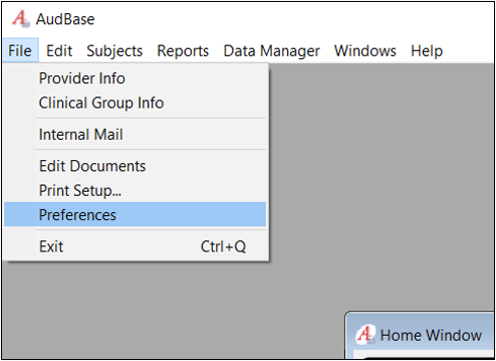**
2. In the **Preferences** window, highlight **Audiology (4 – Machine Specific)** on the left side, then click the **Assignments/Settings** button on the right.-png.png?width=634&height=632&name=image%20(9)-png.png)
3. On the **Serial Port Assignments** tab of the **Serial Devices/External Program Settings** window, click the **\> symbol** next to the **Corti-EroScan** heading to drop the menu down, then click **Select a Port** so it is highlighted.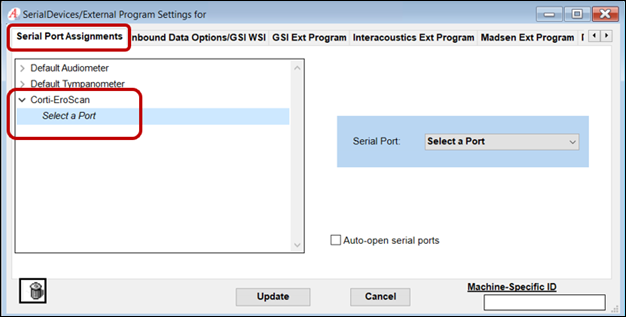
4. On the right side of the **Serial Devices/External Program Settings** window, click the dropdown menu and select the **COM Port** through which your Corti is connected.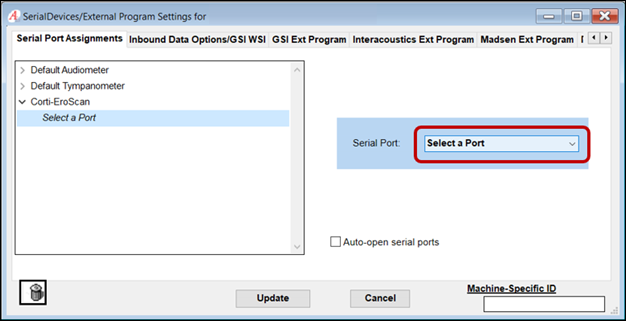
5. Click the **Update** button at the bottom of the window to close **Serial Devices/External Program Settings**, then **Close** the **Preferences** window.
---
**Looking for the full Corti / EroScan workflow?**
See [OAE Data Transfer from GSI Corti or EroScan](https://support.audbase.com/knowledgebase/oae-data-transfer-from-gsi-corti-or-eroscan?hsLang=en) for step-by-step instructions on identifying your COM port and transferring OAE data into AudBase.
- [Troubleshooting](https://support.audbase.com/knowledgebase/troubleshooting?hsLang=en#main-content)
- [Devices and Equipment](https://support.audbase.com/knowledgebase/troubleshooting?hsLang=en#devices-and-equipment)
- [Connectivity](https://support.audbase.com/knowledgebase/troubleshooting?hsLang=en#connectivity)
- [Workflow](https://support.audbase.com/knowledgebase/troubleshooting?hsLang=en#workflow)
- [Instrument Integrations](https://support.audbase.com/knowledgebase/instrument-integrations?hsLang=en#main-content)
- [GSI Instruments](https://support.audbase.com/knowledgebase/instrument-integrations?hsLang=en#gsi-instruments)
- [Natus / Otometrics / Interacoustics](https://support.audbase.com/knowledgebase/instrument-integrations?hsLang=en#natus-otometrics-interacoustics)
- [Accounts / Preferences](https://support.audbase.com/knowledgebase/accounts-preferences?hsLang=en)
- [Documentation](https://support.audbase.com/knowledgebase/documentation?hsLang=en)
- [User Guide](https://support.audbase.com/knowledgebase/user-guide?hsLang=en)
- [Home](https://www.audbase.com/)
- [Blog](https://blog.audbase.com/)
- Support
- [Request Support](https://share.hsforms.com/167lFxVi8TKqHSa4CuG4-uQtl9p1)
- [Knowledge Base](https://support.audbase.com/)
- [Download AudBase Client](https://support.audbase.com/downloads)
- [Contact Us](https://www.audbase.com/contact-and-support)
- [About](https://www.audbase.com/about-us)
[](http://audbase.com)
[mailto:email@email.com](mailto:email@email.com)
Copyright © 2026, AudSoft, Inc.