
Windows administrative rights are required for each of these steps
Option 1 - Manual Installation:
- Navigate to where you’ve placed your AudBase Client installer. Right-click the .exe file and select Run as administrator.
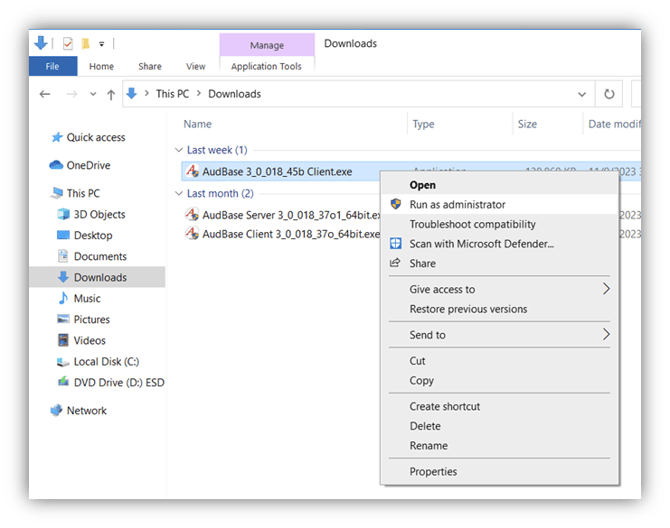
- Accept the EULA and select Next.
- In the next set of windows, keep all the default options enabled, and select Next. AudBase Client will now begin to install.
- Once the installation has completed, select Finish.
Option 2 - Installation:
The AudBase Client installer may be run in “Silent” mode by running the .exe file in a Command Line interface with the “/s” parameter.
This option will run the installation process without any user intervention and is especially useful when multiple workstations require a new version of AudBase Client installed following an AudBase Server update.
Example command:
"C:\Users\WDAGUtilityAccount\Desktop\AudBase 3_0_018_46d Client.exe" /s
If performed successfully, this command will uninstall any previous version of AudBase Client from the workstation (if one was still installed) and will then install the new version.
Connecting to AudBase Server:
After you’ve installed AudBase Client, you will then need to connect the Client to the AudBase Server.
- Right-click the AudBase Client desktop shortcut and select Run as Administrator.
- You may receive a “No server was found” error. This is normal, click Continue.
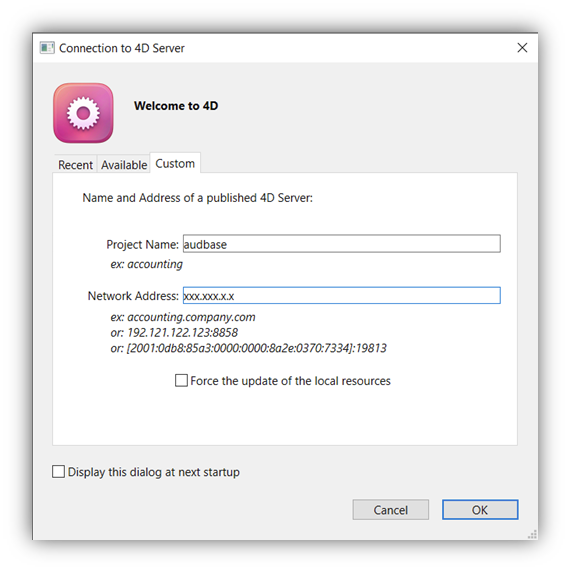
- You will now be taken to a Welcome to 4D screen. Navigate to the custom tab, and enter the following information:
- Project/Database Name - audbase
- Network Address - AudBase Server’s IP address
- You may enter the Production Server’s hostname or FQDN, instead of IP.
- Leave both boxes in this window un-checked and click OK.
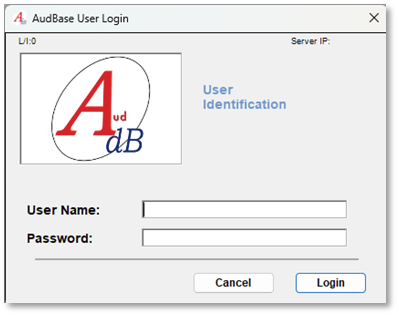 Once the client has synchronized with the server, you will then be taken to the AudBase User Login window. Reaching this window is an indication that the Client has successfully connected to the Server. Any subsequent launches of the Client will not require the server information to be entered by the user.
For technical assistance, please call the AudSoft Helpdesk at 1-888-959-6790
Or start a ticket by emailing a description of your request to: support@audbase.com