---
title: How to use OtoSuite with AudBase
description: "Integrate OtoSuite with AudBase: configure executable and shared folder paths, adjust Otosuite NOAH settings, and test audiogram data sync with AudBase."
---
[Skip to content](https://support.audbase.com/knowledgebase/how-to-use-otosuite-with-audbase#main-content)
English
Show submenu for translations
[Fill out a Support Request](https://support.audbase.com/knowledgebase/kb-tickets/new?hsLang=en)
[](https://support.audbase.com/?hsLang=en)
- [Home](https://www.audbase.com/)
- [Blog](https://blog.audbase.com/)
- Support
Show submenu for Support
- [Request Support](https://share.hsforms.com/167lFxVi8TKqHSa4CuG4-uQtl9p1)
- [Knowledge Base](https://support.audbase.com/)
- [Download AudBase Client](https://support.audbase.com/downloads)
- [Contact Us](https://www.audbase.com/contact-and-support)
- [About](https://www.audbase.com/about-us)
Open main navigation
Close main navigation
- [Home](https://www.audbase.com/)
- [Blog](https://blog.audbase.com/)
- Support
Show submenu for Support
- [Request Support](https://share.hsforms.com/167lFxVi8TKqHSa4CuG4-uQtl9p1)
- [Knowledge Base](https://support.audbase.com/)
- [Download AudBase Client](https://support.audbase.com/downloads)
- [Contact Us](https://www.audbase.com/contact-and-support)
- [About](https://www.audbase.com/about-us)
- English
Show submenu for translations
- [Fill out a Support Request](https://support.audbase.com/knowledgebase/kb-tickets/new)
- [Contact us](mailto:support@audbase.com)
[Contact us](mailto:support@audbase.com)
Welcome to the AudBase Knowledge Base
- There are no suggestions because the search field is empty.
1. [AudBase Knowledge Base](https://support.audbase.com/knowledgebase?hsLang=en)
2. [Instrument Integrations](https://support.audbase.com/knowledgebase/instrument-integrations?hsLang=en)
3. [Natus / Otometrics / Interacoustics](https://support.audbase.com/knowledgebase/instrument-integrations?hsLang=en#natus-otometrics-interacoustics)
June 18, 2025
# How to use OtoSuite with AudBase
## Step‑by‑step guide to integrate OtoSuite with AudBase
### AudBase Configuration Steps
1\) Launch the AudBase Client application, and log in.
2\) From the Home window, go to **File**, then **Preferences**.
3\) Select **Audiology (4 - Machine Specific)**, then select **Assignments/Settings**.
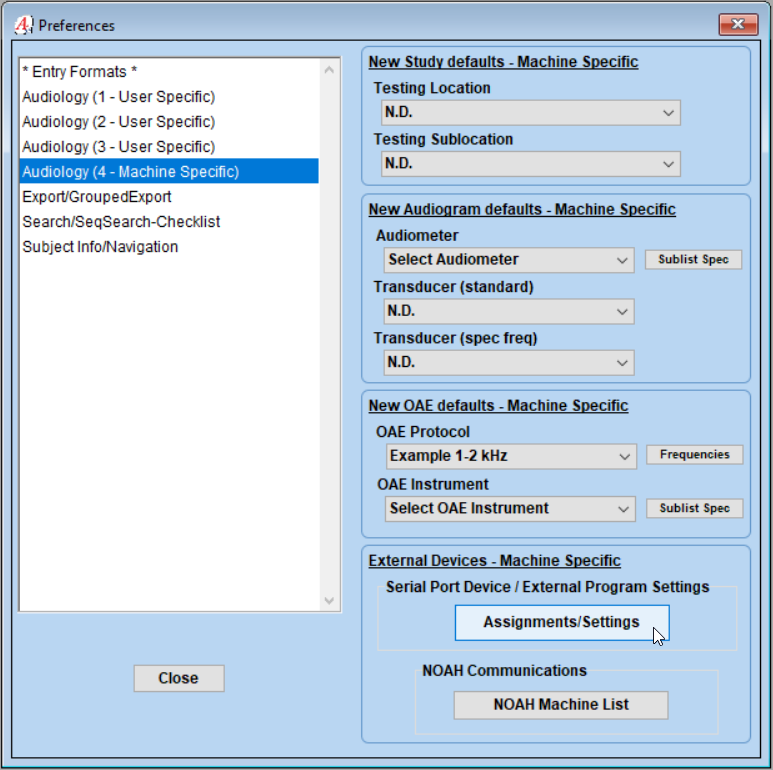
4\) In the new window, choose the **Madsen Ext Program** tab.
5\) Select the **OtoSuite Program** button to navigate to the OtoSuite application (this will be the path used for launching OtoSuite from an audiogram).
6\) Once selected, the file path should appear in the box below the **OtoSuite Program** button.
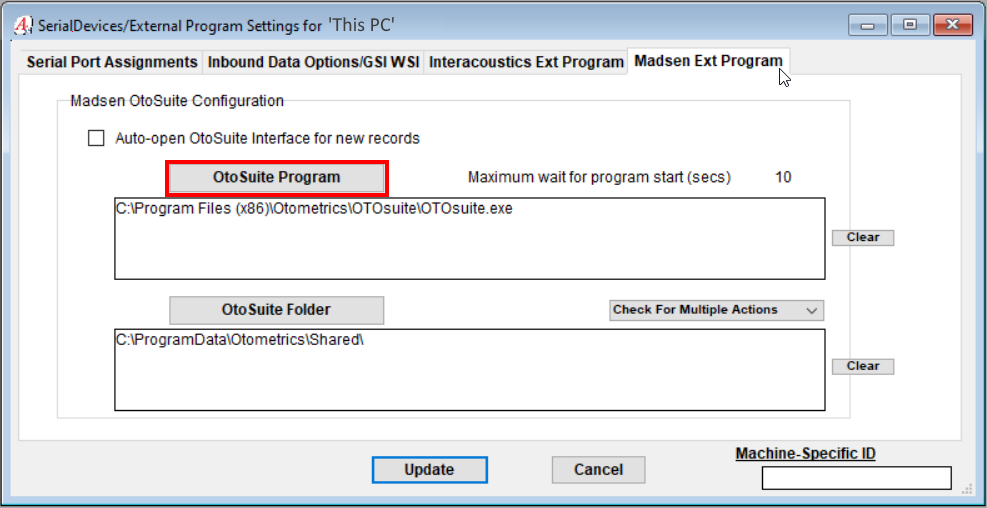
7\) Select the **OtoSuite Folder** button to open a new window that will allow you to navigate to the folder to which OtoSuite is set to save data (see step 4 of the OtoSuite configuration to confirm the OtoSuite setting).
**The default location is C:\\ProgramData\\Otometrics\\Shared\\**
*\*Please note that the “Program Data” folder is a hidden folder - you may have to “show hidden files and folders” within Windows in order to navigate to the target folder.*
8\) Click “**Update**” to save these settings.
---
### OtoSuite Configuration Steps
1\) Bring up a **test patient** in AudBase Client and start a **New Audiogram**.
\*Note: the test patient must have a valid birthdate in the demographics tab\*
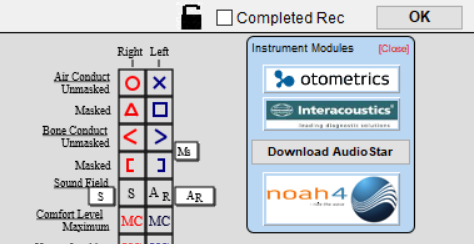
2\) In the audiogram window, select the **Otometrics** button to launch OtoSuite.
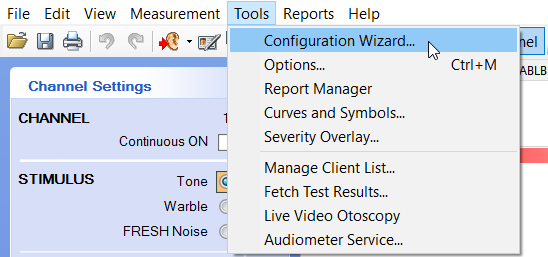
3\) In OtoSuite, select **Tools**, then **Configuration Wizard**.
4\) On the Applications page, select **Next**.
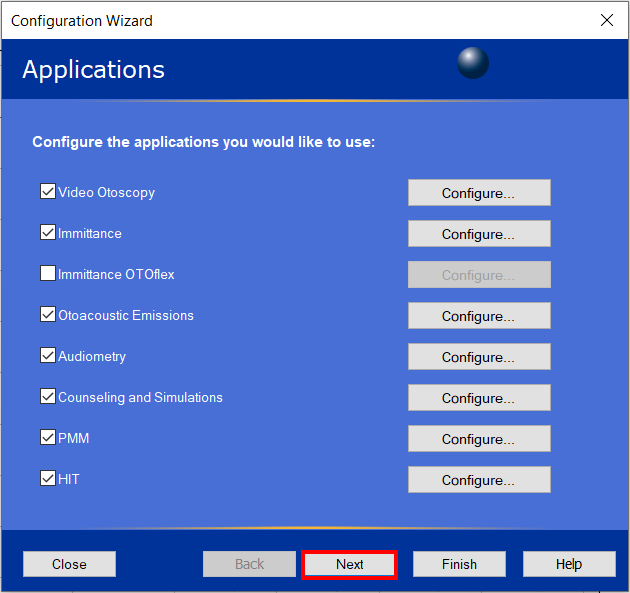
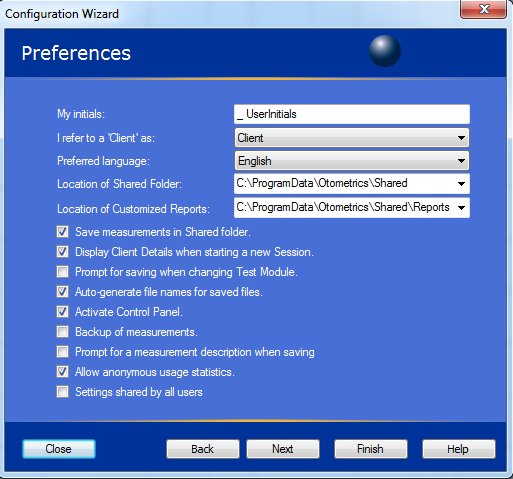
5\) On the Preferences page, note the **Location of Shared Folder** preference. This item should match the AudBase configuration for **OtoSuite Folder**. (see step 7 of the AudBase Configuration steps above)
6\) Be sure that **Save measurements in Shared folder** is checked. Then click **Next**.
#### OtoSuite Noah Options
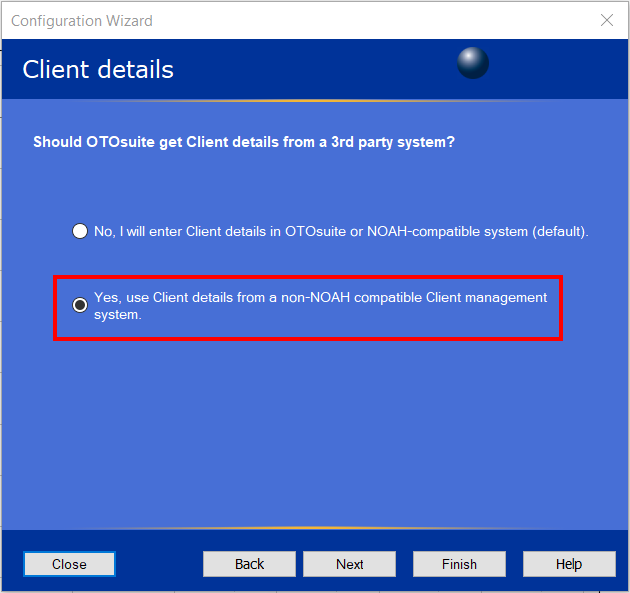
7\) To **turn off** the feature that automatically launches NOAH when OtoSuite is started (or if you do not use NOAH on this PC), select the second item that says “**Yes, use Client details from a non-NOAH compatible Client management system**.” Then select **Next.** If next is not able to be selected, or is "greyed out" you may select **Finish**.
8) On the **Protect User Tests** page, select **Next.** These settings do not affect AudBase and can be configured at the preference of your clinic.

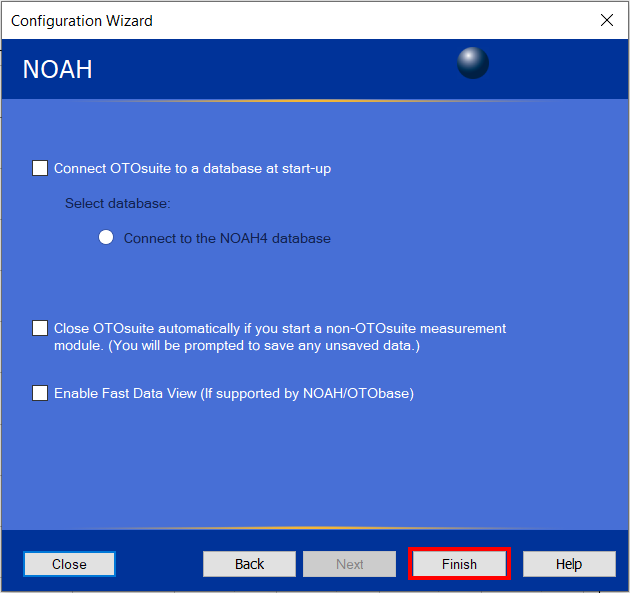
9\) On the **Noah** page, ensure that all of the checkboxes on this page are unchecked and appear as shown in the graphic below. The select **Finish.**
To test the connection, plot thresholds in OtoSuite, then **close** OtoSuite. When prompted, click “**Yes**” to **Save**.
The data will then be displayed in AudBase.

---
***\*For technical assistance,* *please call the AudSoft Helpdesk at 1-888-959-6790***
***Or start a ticket by emailing a description of your request to: support@audbase.com***
- [Troubleshooting](https://support.audbase.com/knowledgebase/troubleshooting?hsLang=en#main-content)
- [Devices and Equipment](https://support.audbase.com/knowledgebase/troubleshooting?hsLang=en#devices-and-equipment)
- [Connectivity](https://support.audbase.com/knowledgebase/troubleshooting?hsLang=en#connectivity)
- [Workflow](https://support.audbase.com/knowledgebase/troubleshooting?hsLang=en#workflow)
- [Instrument Integrations](https://support.audbase.com/knowledgebase/instrument-integrations?hsLang=en#main-content)
- [GSI Instruments](https://support.audbase.com/knowledgebase/instrument-integrations?hsLang=en#gsi-instruments)
- [Natus / Otometrics / Interacoustics](https://support.audbase.com/knowledgebase/instrument-integrations?hsLang=en#natus-otometrics-interacoustics)
- [Accounts / Preferences](https://support.audbase.com/knowledgebase/accounts-preferences?hsLang=en)
- [Documentation](https://support.audbase.com/knowledgebase/documentation?hsLang=en)
- [User Guide](https://support.audbase.com/knowledgebase/user-guide?hsLang=en)
- [Home](https://www.audbase.com/)
- [Blog](https://blog.audbase.com/)
- Support
- [Request Support](https://share.hsforms.com/167lFxVi8TKqHSa4CuG4-uQtl9p1)
- [Knowledge Base](https://support.audbase.com/)
- [Download AudBase Client](https://support.audbase.com/downloads)
- [Contact Us](https://www.audbase.com/contact-and-support)
- [About](https://www.audbase.com/about-us)
[](http://audbase.com)
[mailto:email@email.com](mailto:email@email.com)
Copyright © 2026, AudSoft, Inc.