
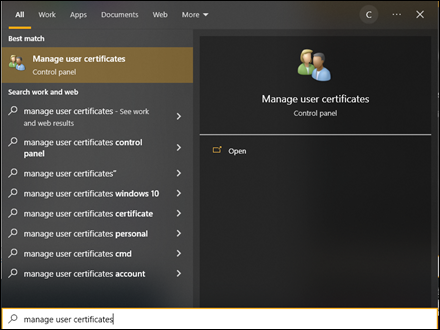
- Right click on the Start button and search for Manage user certificates and select it from the search results.
- (Alternatively, right click the Start button and select Run and input certmgr.msc)
- The Certificate Manager Tool is displayed.
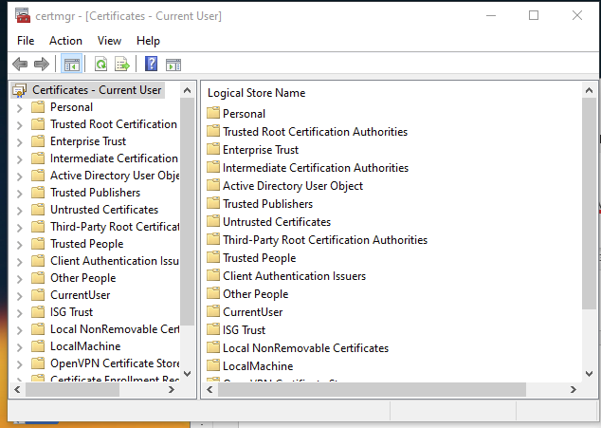
- Select Personal, and then select Certificates.
- A list of certificates for the current user will be displayed in the right pane of the window. Check the Expiration Date column to identify any certificates with a past expiration date; these may be deleted. You can click the Expiration Date column header to sort by date.
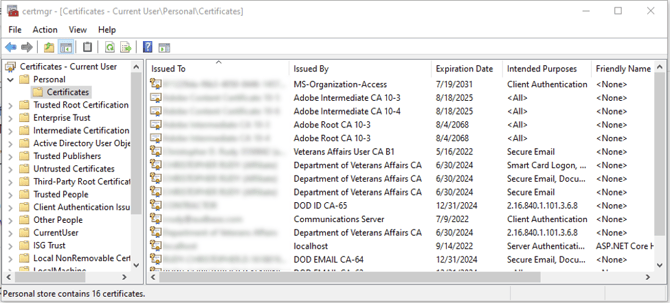
- Right click on an expired certificate and select Delete to remove it. Repeat for any remaining expired certificate
- Once all expired certificates have been removed, relaunch AudBase and attempt to log in again.